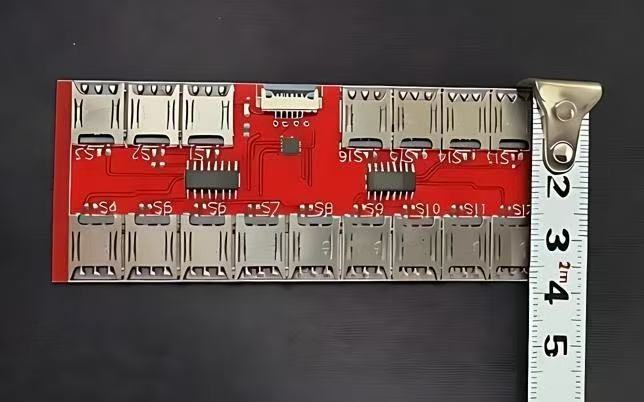
Many people use an external SIM card reader to solve the problem of limited SIM slots on their phones. For example, a phone may support only one or two SIM cards, while the user has multiple work SIMs, data SIMs, registration numbers, or backup numbers. In this situation, an external SIM solution can make Sim multi-card switching much more flexible. Normally, after connecting the external SIM card reader to the phone, the system should detect the SIM card and display the carrier signal. However, in real use, some users may encounter problems such as “SIM not detected,” “No Service,” or “Searching for network.”
When this happens, do not immediately assume the device is broken. An external SIM card reader involves several factors, including the phone interface, SIM card contact, system recognition, and carrier network. If any one of these parts goes wrong, the phone may fail to get a signal. Below are four practical troubleshooting methods for beginners.
1. Check Whether the SIM Card Works Properly
If your external SIM card reader cannot detect the SIM card, the first step is to check the SIM card itself. In many cases, the issue is not caused by the external reader, but by the SIM card being inactive, unpaid, suspended, worn out, or restricted by the carrier.
You can first insert the SIM card directly into the phone’s built-in SIM slot. If the phone still cannot detect it or shows “No Service,” the problem is likely with the SIM card itself. For example, the metal contact surface may be oxidized, the card may have been cut poorly, or the SIM may simply be too old.
If the SIM card works normally in the phone’s original SIM slot, then insert it back into the external SIM card reader for testing. This comparison helps you quickly determine whether the problem is with the card, the external reader, the cable, or the phone’s recognition.
2. Check the SIM Tray Direction and Metal Contacts
Although many external SIM card readers look simple, the card direction, placement, and contact alignment are very important. If the SIM card is not fully pressed into place or the metal contacts are not aligned properly, the phone may fail to detect the card.
When installing the SIM card, pay attention to the notched corner and avoid forcing the card into the slot. You can gently remove and reinsert the card to make sure it lies flat, without bending or looseness. If your device uses a multi-SIM tray design, also confirm which SIM slot is currently selected. Some external SIM devices support multiple cards and switch between them. If the device is not switched to the correct slot, the phone will not read the card you want to use.
It is also important not to insert and remove the card too aggressively. The contacts on both the SIM card and the external tray are small and delicate. If they become scratched or deformed, you may experience unstable recognition, intermittent signal, or sudden “No Service” issues later.
3. Confirm Phone Compatibility and System Settings
An external SIM card reader can expand the way you use SIM cards, but it does not mean every phone or every system version will be fully compatible. Some phones are more sensitive when recognizing external SIM devices, and compatibility may also change after a system update.
If your phone keeps showing “No Service,” try testing the same external SIM card reader on another phone. If it works on another device, then the reader itself may be fine. The issue may be related to the current phone’s system, SIM protocol.or settings.
You can also check the mobile network settings. Try turning Airplane Mode on and off, or restart the phone so the system can search for the network again. In some cases, after switching SIM slots on an external SIM card reader, the phone may not refresh the signal immediately. You may need to wait for several seconds or restart the phone before it can detect the card properly.
For users who rely on Sim multi-card switching, it is better not to switch cards too quickly. After each switch, give the phone some time to recognize the SIM card. Rapid switching may cause the system to misread the status and fail to register on the network.
4. Check Carrier Network and SIM Card Compatibility
If the phone can detect the SIM card but still shows “No Service,” you should check the carrier network and network bands. For example, the signal may be weak in your area, or some overseas SIM cards, IoT SIM cards, and data-only SIM cards may require specific frequency bands or network modes. If your phone does not support the required bands, the SIM card may be detected but still fail to register on the network.
You can go to the phone’s mobile network settings and try selecting the carrier manually. You can also switch between 4G and 5G network modes. Some SIM cards may not register smoothly through automatic network selection, but manual selection can sometimes restore service.
If you are using several SIM cards in rotation, you also need to check the status of each card. Some cards support SMS, while others only support data. Some cards may also be suspended or restricted if they have not been used for a long time. These issues cannot be solved by the external SIM card reader alone, so you may need to contact the carrier to confirm the card status.
Conclusion: Check the Card First, Then the Device, Then the Network
When an external SIM card reader cannot detect the SIM card or shows “No Service,” the troubleshooting process is straightforward: first check whether the SIM card works, then inspect the tray direction and metal contacts, then test phone compatibility, and finally check the carrier network and SIM card standard.
For people who often manage multiple phone numbers, an external SIM card reader can greatly improve flexibility. It is especially useful for studios, multi-account operations, backup number management, and work scenarios that require several SIM cards. With a stable device and the right usage method, Sim multi-card switching becomes much more convenient. You no longer need to frequently remove the phone’s original SIM tray, and the risk of damaging SIM cards is also reduced.
If you are new to external SIM devices, it is better to start by testing one or two commonly used SIM cards before expanding to more usage scenarios. This helps you confirm whether the device is suitable for your phone and prevents misjudgment caused by unfamiliar operation. By following the four methods above, most “SIM not detected” and “No Service” problems can be identified and solved.